How to Change Your Template on Squarespace (It's Complicated)
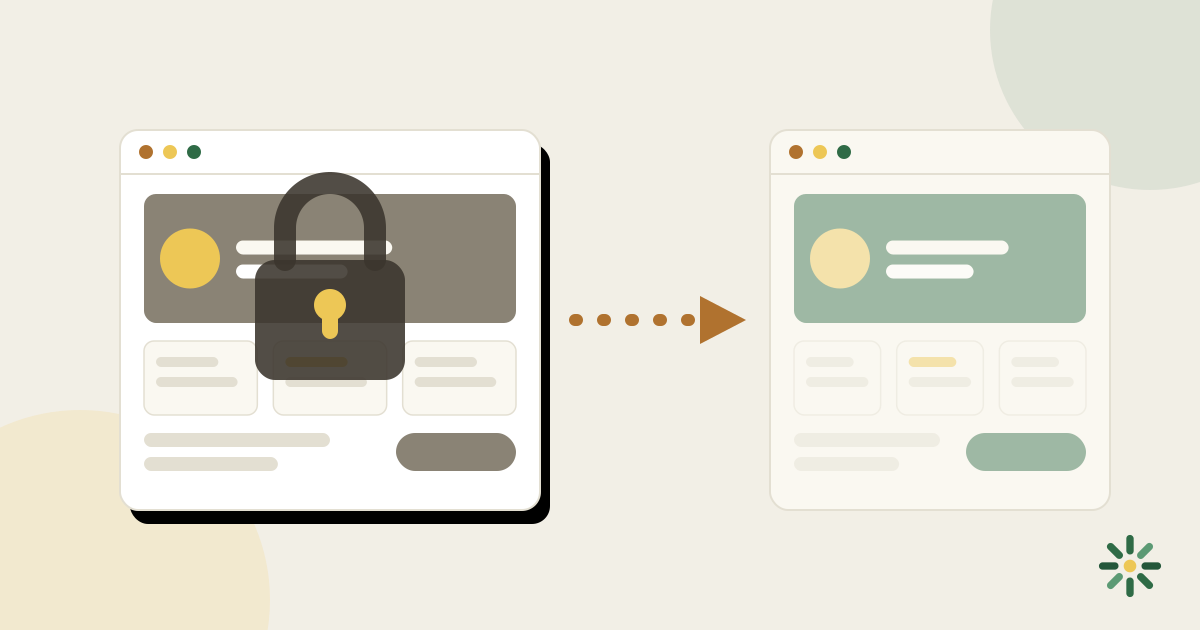
Short answer: whether you can change your Squarespace template depends on which version your site runs on. On Squarespace 7.0, you can install and switch templates. On Squarespace 7.1 — every site created since early 2020 — there are no switchable templates at all: what Squarespace sells as "templates" are starting designs, and once your site exists, you restyle it section by section instead of swapping the template out.
Here's how to tell which version you have, what your options are on each, and what to do if the real problem is that you want a genuinely different design without rebuilding your site.
First: check which Squarespace version you're on
- Log in to your Squarespace dashboard and open your site.
- Open the Help panel (question-mark icon), or check Settings.
- Your version is listed as 7.0 or 7.1. Sites created after roughly March 2020 are almost always 7.1.
The distinction matters because the two versions treat templates completely differently.
If you're on Squarespace 7.0: yes, you can switch
Squarespace 7.0 has installable templates. To change yours:
- In the Home menu, go to Design → Template.
- Click Install New Template and browse the template store.
- Install the one you want — it's added to your site but not live yet.
- Preview the new template. Expect your content to shift around: different 7.0 template families support different page types and navigation structures, so menus, banners, and special pages (like index pages) may not carry over cleanly.
- When you're satisfied, set the new template as live.
Things to know before you switch:
- Styles don't transfer. Fonts, colors, and spacing tweaks you made in the old template stay with the old template. You'll re-do design work after switching.
- Some content is template-specific. Features tied to one template family (index pages, sidebars, special banners) can disappear or render differently in another.
- You can switch back. The old template stays installed until you delete it.
Also worth knowing: Squarespace has been steering everyone toward 7.1 for years, and 7.0 templates no longer get new features. If you're redesigning anyway, they'd rather you rebuild on 7.1 — which brings us to the catch.
If you're on Squarespace 7.1: there is no template switching
This surprises a lot of people. On 7.1, every site shares one underlying design system. The "templates" you chose from at signup are pre-styled starting points, not separate templates — and there is no menu, anywhere, to swap yours for a different one.
What you can do instead:
- Restyle the site. Open Design → Site Styles and change fonts, colors, spacing, buttons, and animations globally.
- Rework sections. Each page is made of sections; you can swap section layouts one at a time.
- Start a new site. If you want a different starting design, the honest path is creating a brand-new site from that design and moving your content over manually — page by page, image by image. There's no automated migration.
For a small site, that rebuild is an afternoon. For a bigger one, it's a weekend or more — and you'll pay for the new site's subscription while the old one runs.
The real question: how much redesign do you actually need?
If you just want new fonts and colors, Site Styles on 7.1 will get you there. But if you want your site to feel different — a different layout, structure, and personality — you're effectively rebuilding, whichever version you're on.
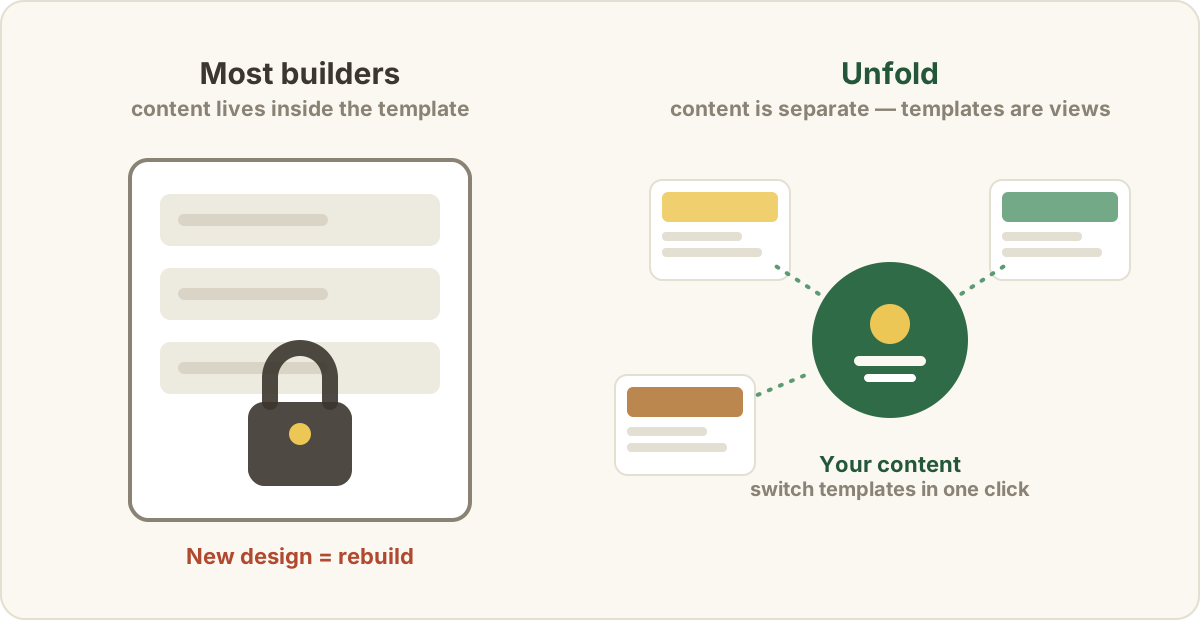
That's not a Squarespace quirk so much as how most general-purpose builders work: your content lives inside the design, so changing the design means rebuilding the container. Wix has the same limitation, in an even stricter form.
How Unfold handles this differently
We built Unfold around the opposite assumption: your content and your design should be separate. Unfold is a personal-website builder for job seekers and professionals — your experience, projects, and story are structured data, and templates are just different ways to render it.
That means switching templates is one click, and it's instant:
- All 18 templates work with your existing content — nothing to migrate, re-enter, or fix afterward.
- You can flip between templates until one feels right, with your real content in every preview, not lorem ipsum.
- Fonts, colors, and section layouts stay editable inside whichever template you pick.
If the site you're fighting with is a personal or portfolio site, you can turn your existing resume into a website on Unfold in about a minute, then try every template with your real content before committing to any of them. It's free to start.
(To be fair: if you're running a store, a restaurant site, or a complex multi-page business site, Squarespace's breadth is genuinely useful and Unfold isn't trying to replace it. Unfold is for the personal site that gets you hired.)
Common questions
Will changing my Squarespace template hurt my SEO?
The template itself isn't a ranking factor, but a switch can shuffle your page structure — and changed URLs, lost pages, or broken navigation do hurt. If you switch on 7.0 or rebuild on 7.1, keep your URLs the same where possible and set up redirects where they change.
Can I move a Squarespace 7.0 site to 7.1 automatically?
No. As of this writing, Squarespace doesn't offer an automated 7.0-to-7.1 migration — moving means creating a new 7.1 site and rebuilding content manually.
Can I preview a different design without touching my live site?
On 7.0, yes — installed templates can be previewed before going live. On 7.1, you'd create a separate trial site with the new starting design and compare side by side.
What should go on the site once the design is sorted?
Design is the container; the content is what gets you interviews. Start with what to put on a personal website.